BaseSpace_Fetch
Quick Facts
| Workflow Type | Applicable Kingdom | Last Known Changes | Command-line Compatibility | Workflow Level | Dockstore |
|---|---|---|---|---|---|
| Data Import | Any taxa | vX.X.X | Yes | Sample-level | BaseSpace_Fetch_PHB |
BaseSpace_Fetch_PHB
The BaseSpace_Fetch workflow facilitates the transfer of Illumina sequencing data from BaseSpace (a cloud location) to a workspace on the Terra.bio platform. Rather than downloading the files to a local drive and then re-uploading them to another location, we can perform a cloud-to-cloud transfer with the BaseSpace_Fetch workflow.
What you need before you start:
- A BaseSpace account with access to the Run or Project holding your data.
- A BaseSpace access token.
- A Terra data table with one row per sample.
Step 1 — Get your basespace_access_token
This workflow requires a BaseSpace access token to authenticate your BaseSpace account and download FASTQ files from your Runs/Projects. Each basespace_access_token is tied to a single BaseSpace account, so you'll need a separate token for every account you want the workflow to access. The simplest way to obtain this token is with the BaseSpace command-line tool (bs), described below.
Already have a command-line environment available? You can skip ahead to 1.2 bs CLI installation.
1.1 Create a command-line environment
Click for more information
-
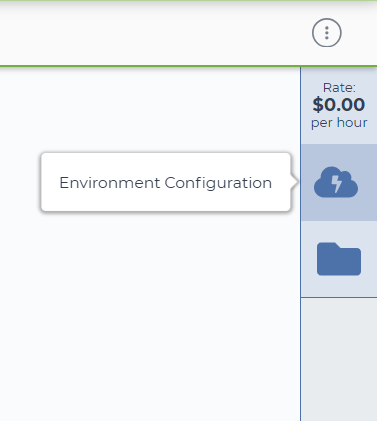
Select the "Environment Configuration" cloud icon on the right side of the workspace dashboard tab
Click on the cloud icon to access the environment configuration
-
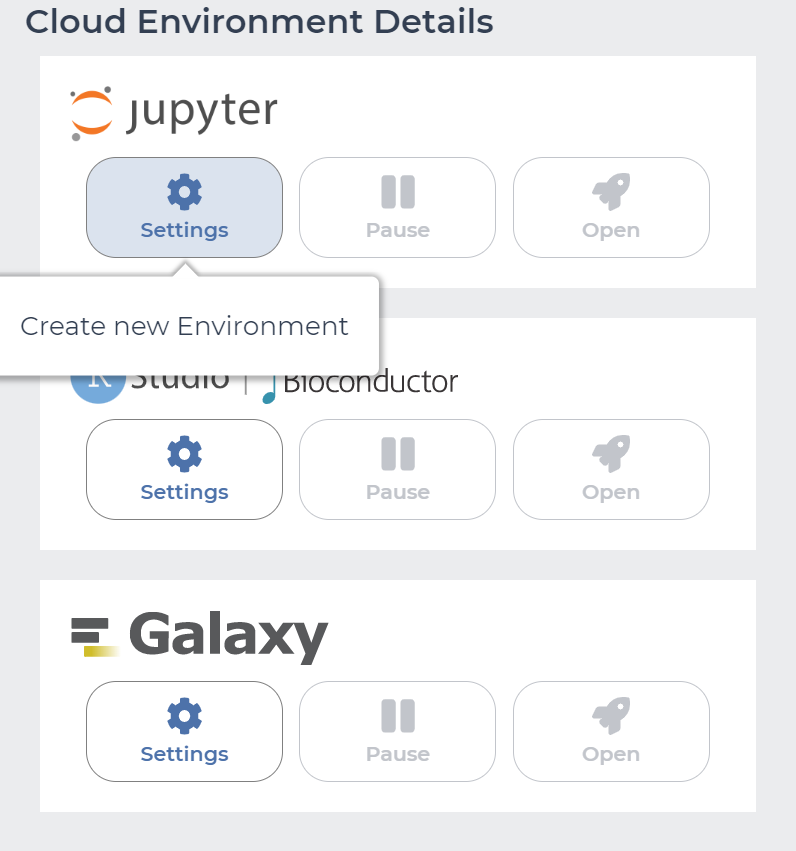
Select the "Settings" button under Jupyter
Click on Settings underneath the Jupyter icon
-
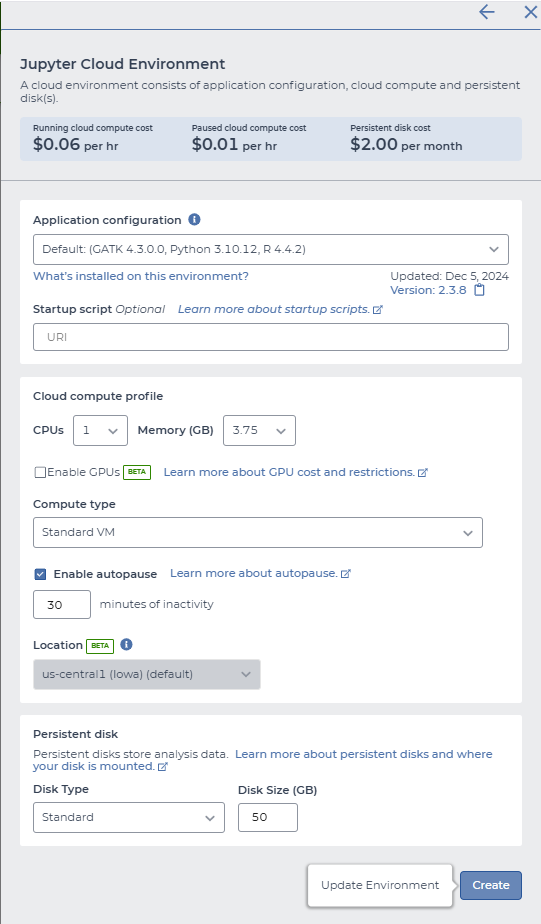
Click "CREATE" at the bottom of the "Jupyter Cloud Environment" page. There is no need to alter the default environment configuration.
Click on Create at the bottom of the page
Environment customization
The default environment should be sufficient for retrieval of BaseSpace credentials, but if performing other tasks in the environment please modify the resource allocations appropriately.
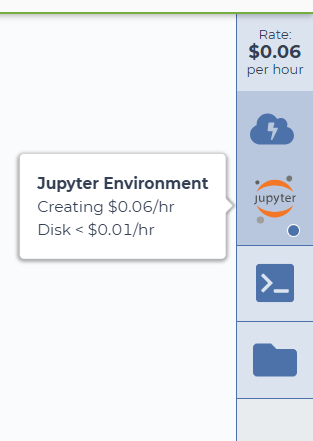
You will be returned to the main page after clicking "Create". You will notice two new icons in your right-hand side bar as the environment is being created.
Environment creation in progress
1.2 Install the BaseSpace command-line tool and retrieve the access token
Click for more information
-
When the environment is created and active, you should see a green dot in the bottom right corner of the Jupyter icon. Click on the "Terminal" icon in the right side-bar of the Terra dashboard to open the terminal.
Open the terminal
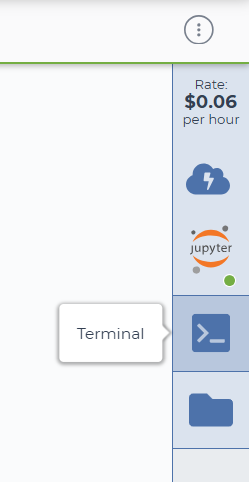
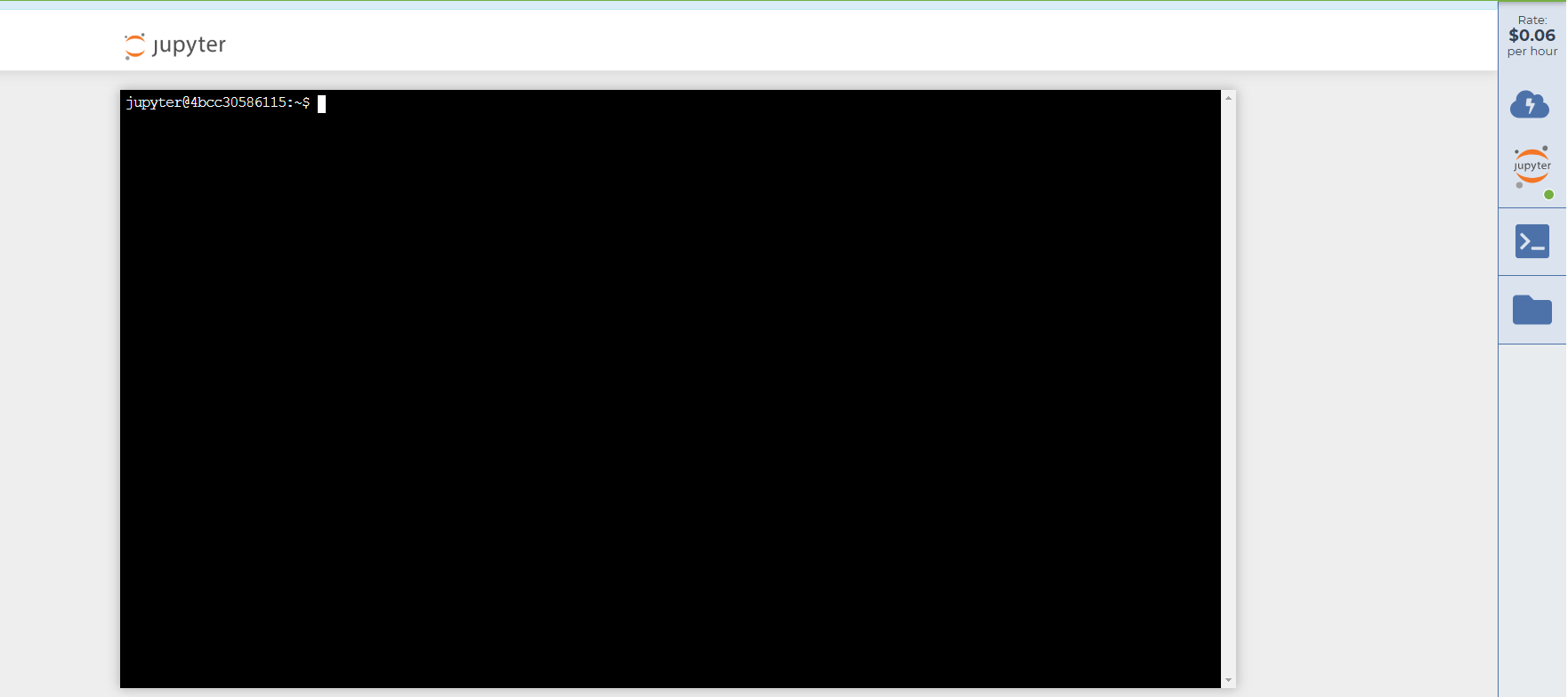
The open terminal will appear in a new tab in your browser and will look similar to this:
The terminal window
-
Download and setup the BaseSpace (BS) command line interface (CLI) tool (as per the Illumina documentation) by following the commands below. The lines beginning with
#are comments, the following lines are the commands to be copy/pasted into the terminalBaseSpace Fetch Authentication Instructions# create bin directory mkdir ~/bin # download the basespace cli wget "https://launch.basespace.illumina.com/CLI/latest/amd64-linux/bs" -O $HOME/bin/bs # provide proper permissions to make the bs cli executable chmod u+x $HOME/bin/bs # add the 'bs' command-line tool to the $PATH variable so that you can call the command-line tool from any directory export PATH="$PATH:$HOME/bin/" # authenticate with BaseSpace credentials bs auth # navigate to the link provided in stdout and accept the authentication request through BaseSpace # Print the api server and access token to stdout cat ~/.basespace/default.cfg
1.3 Store the token as Terra workspace data
Click for more information
Copy the contents of ~/.basespace/default.cfg (specifically the accessToken and API server details) into Terra as workspace data elements.
- Navigate to the Terra "DATA" tab, and select "Workspace Data" at the bottom of the left sidebar.
- Click on "Edit" and then "Add variable" to add the new workspace data elements as in the examples below.
Create workspace data elements
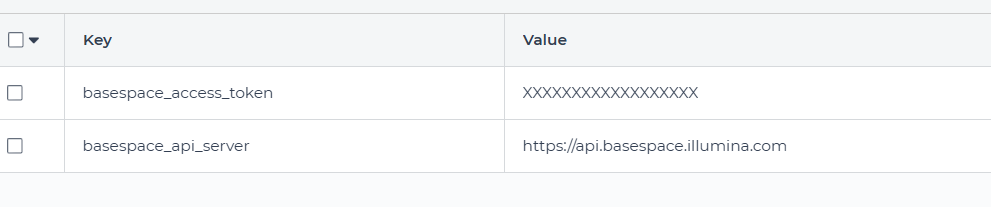
When you launch the workflow, point the basespace_access_token input at this variable using workspace.basespace_access_token. The basespace_api_url input is optional and defaults to https://api.basespace.illumina.com.
Pulling from more than one BaseSpace account in a single run
basespace_access_token is an ordinary workflow input, so it does not have to come from workspace data. If different samples live under different BaseSpace accounts, add a basespace_access_token column to your data table and point the input at this.basespace_access_token instead.
Step 2 — Find your basespace_collection_id
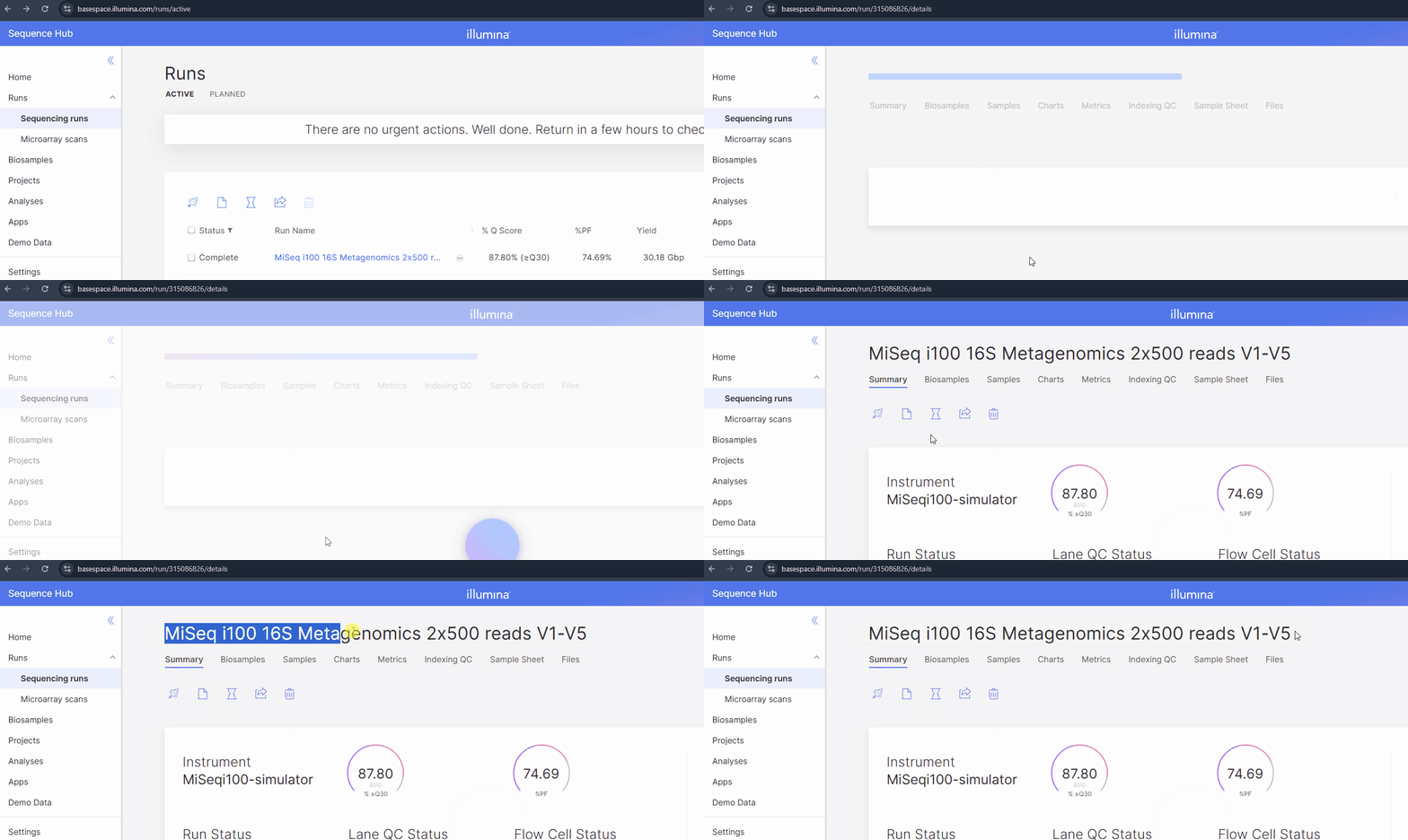
In this guide, a "collection" refers to the name of the BaseSpace Run or Project that contains your FASTQ files. The examples below show where to find the Run or Project name to enter as your basespace_collection_id.
If your collection is a Run
BaseSpace Run - Collection ID
If your collection is a Project
BaseSpace Project - Collection ID
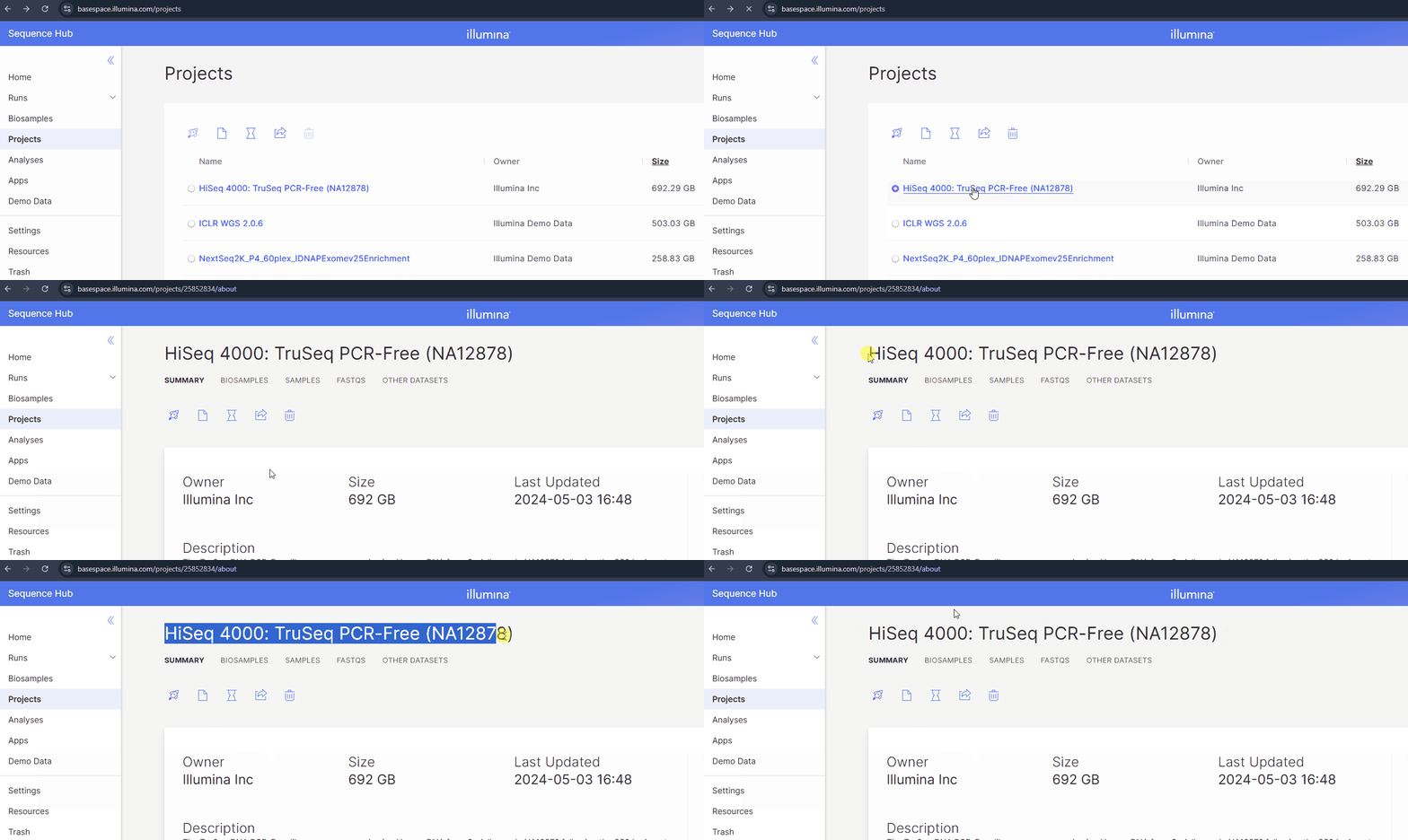
Warnings for basespace_collection_id
- Matching is exact and case-sensitive. BaseSpace's own search box is forgiving about case and partial words; this workflow is not.
- Only Runs and Projects are supported. A biosample, an app result, or an analysis cannot be used as a
basespace_collection_id. - If nothing matches
basespace_collection_id, you'll get the error: - If more than one thing matches
basespace_collection_id- for example a Run and a Project sharing the same name, the Run will always be prioritized first.
Step 3 — Find your basespace_sample_id
basespace_sample_id is matched against the datasets inside your "collection". These datasets are shown under the FastQ Dataset column for a Run, or the Dataset Name column for a Project.
3.1 Starting from a SampleSheet.csv
If you have the Run's sample sheet, its Sample_ID column is a good starting point, however keep in mind that they may not always provide an exact match. Per Illumina's BaseSpace data model, Sample_ID becomes the biosample name and Sample_Name becomes the library name. A FastQ Dataset is a separate object produced downstream by demultiplexing, so while the Sample_ID often matches the resulting dataset name, it is not guaranteed to. In practice, if the FastQ Dataset name differs from the Sample_ID, it's usually because a lane suffix was added.
3.2 Without a SampleSheet.csv
If your collection is a Run
Open the Runs tab and go to the Biosamples tab. The values in the "FastQ Dataset" column are the dataset names that yourbasespace_sample_ids are matched against.
If your collection is a Project
Open the Projects tab and go to the FASTQS tab. The values in the "Dataset Name" column are the dataset names that yourbasespace_sample_ids are matched against.
3.3 How your basespace_sample_id name is matched
The workflow searches for each basespace_sample_id in the following order, stopping after the first successful match:
-
Exact dataset name. If a dataset name exactly matches the value you provided, that dataset is used to retrieve the associated FASTQ files.
Duplicate dataset names
If a collection has more than one dataset with the same name (for example, a requeued sample), the workflow fails with a
Duplicate datasetserror by default. Setuse_latest_datasettotrue(default:false) to use the most recently created dataset instead, or remove the extra datasets in BaseSpace. -
Lane-suffixed datasets. If no dataset name exactly matches the value you provided, and
group_by_laneis set totrue(default:false), the workflow searches for datasets with that value followed by a lane suffix. FASTQ files from matching datasets are then merged into a single R1/R2 pair.Lane-suffixed dataset names
A dataset is considered a lane-suffixed dataset if removing its lane suffix (for example,
_L1or_L001) leaves a name that exactly matches the value you provided. See examples below.
If neither step finds a match, the workflow fails with No exact dataset match. If only lane-suffixed datasets exist and group_by_lane is false, it fails with Partial dataset match. Set group_by_lane to true to merge them.
3.4 Worked examples using group_by_lane
Each example below lists the datasets that exist in a collection, then shows what a given basespace_sample_id resolves to with group_by_lane on and off (the default).
A sample split across lanes (most common)
Dataset Name:

Sample-2026-001_L001
Sample-2026-001_L002
Sample-2026-001_L003
Sample-2026-001_L004
Sample-2026-0010_L001
basespace_sample_id |
group_by_lane = true |
group_by_lane = false (default) |
|---|---|---|
Sample-2026 |
❌ Fails — No exact dataset match |
❌ Fails — No exact dataset match |
sample-2026-001 |
❌ Fails — No exact dataset match |
❌ Fails — No exact dataset match |
Sample-2026-001 |
✅ All four lanes merged into one R1/R2 pair. Sample-2026-0010_L001 is excluded. The "un-laned" dataset name (Sample-2026-0010) does not exactly match. |
❌ Fails — Partial dataset match |
Sample-2026-001_L001 |
✅ Lane 1 only, on its own. Exact matches always take precedence. | ✅ Lane 1 only, on its own. Exact matches always take precedence. |
An un-laned dataset sitting alongside lanes (rare)
basespace_sample_id |
group_by_lane = true |
group_by_lane = false (default) |
|---|---|---|
Sample-2026-002 |
⚠️ Only the Sample-2026-002 dataset (PASSES with warning) |
⚠️ Only the Sample-2026-002 dataset (PASSES with warning) |
Sample-2026-002_L001 |
✅ Lane 1 only, on its own | ✅ Lane 1 only, on its own |
Exact matches always take precedence
Although rare, it is possible to have an "un-laned" dataset alongside lane-suffixed datasets. In this case, the workflow will always use the exact match first, even if group_by_lane is set to true. The workflow will pass with a warning, recorded in the basespace_log output, that the lane-suffixed datasets were ignored.
Step 4 — Build the Terra data table
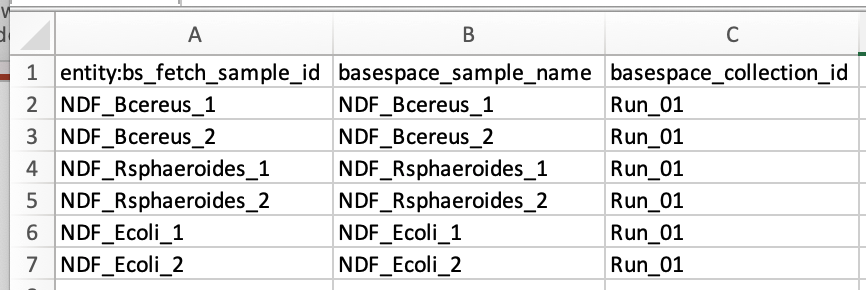
To build and format a data table, follow Terra's guide: How to make a data table from scratch or a template. Alternatively, feel free to download our BaseSpace_Fetch template. It already has the required columns, so you only need to fill in one row per sample and rename the table in the first column header. See the table below for a description of each column.
| Column | What to enter |
|---|---|
First column (entity:<table name>_id) |
A unique name for each sample. This can be the same as basespace_sample_id or any other name. |
basespace_sample_id |
The dataset name found in Step 3. |
basespace_collection_id |
The Run or Project name found in Step 2. |
The downloaded FASTQ files are named after the first column's values
Each downloaded FASTQ file is renamed using the values under the first column (entity:<table name>_id). See example image below, in a table named bs_fetch:
Step 5 — Upload the data table to Terra
Click for more information
-
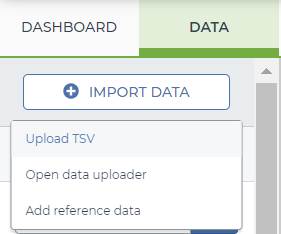
In Terra, navigate to the "DATA" tab, click "IMPORT DATA" then "Upload TSV"
Upload TSV
-
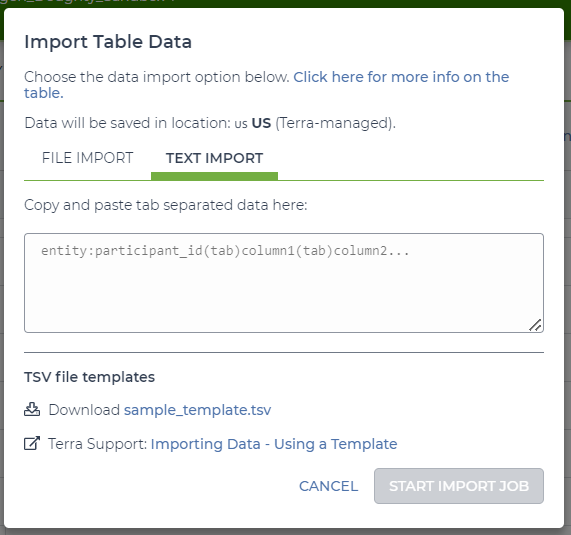
Copy and paste the contents of the whole spreadsheet into the "TEXT IMPORT" tab and click "START IMPORT JOB"
Import Metadata
You can now use the created table to run the BaseSpace_Fetch workflow.
Inputs
Call-Caching Disabled
If using BaseSpace_Fetch workflow version 1.3.0 or higher, the call-caching feature of Terra has been DISABLED to ensure that the workflow is run from the beginning and data is downloaded fresh. Call-caching will not be enabled, even if the user checks the box ✅ in the Terra workflow interface.
| Terra Task Name | Variable | Type | Description | Default Value | Terra Status |
|---|---|---|---|---|---|
| basespace_fetch | basespace_access_token | String | The access token is used in place of a username and password to allow the workflow to access the user account in BaseSpace from which the data is to be transferred. It is an alphanumeric string that is 32 characters in length. Example: 9e08a96471df44579b72abf277e113b7 | Required | |
| basespace_fetch | basespace_collection_id | String | The collection ID is the BaseSpace Run or Project where the data to be transferred is stored. | Required | |
| basespace_fetch | basespace_sample_id | String | The BaseSpace sample ID is the dataset name used in BaseSpace. This input is defined on the sample sheet at the onset of an Illumina sequencing run. | Required | |
| basespace_fetch | sample_name | String | The sample name is the sample identifier used in the Terra.bio data table corresponding to the metadata associated with the sample to be transferred from BaseSpace | Required | |
| basespace_fetch | basespace_api_url | String | The web address to which data transfer requests can be sent by the workflow. | https://api.basespace.illumina.com | Optional |
| basespace_fetch | group_by_lane | Boolean | If True, expands sample name matching to {sample}_L### and groups together multi-laned datasets so they concatenate together. Set False to require an exact match. |
False | Optional |
| basespace_fetch | use_latest_dataset | Boolean | If True, when multiple datasets share the same name, resolve to the most recently created one instead of failing. | False | Optional |
| basespace_fetch | validate_paired_end | Boolean | If True, require each output to be a balanced paired-end dataset group before downloading. | False | Optional |
| fetch_bs | cpu | Int | Number of CPUs to allocate to the task | 2 | Optional |
| fetch_bs | disk_size | Int | Amount of storage (in GB) to allocate to the task | 250 | Optional |
| fetch_bs | docker | String | The Docker container to use for the task | us-docker.pkg.dev/general-theiagen/theiagen/bioforklift:0.5.4 | Optional |
| fetch_bs | memory | Int | Amount of memory/RAM (in GB) to allocate to the task | 8 | Optional |
| version_capture | docker | String | The Docker container to use for the task | us-docker.pkg.dev/general-theiagen/theiagen/alpine-plus-bash:3.20.0 | Optional |
| version_capture | timezone | String | Set the time zone to get an accurate date of analysis (uses UTC by default) | Optional |
Outputs
The outputs of this workflow will be the fastq files imported from BaseSpace into the data table where the sample ID information had originally been uploaded, along with a basespace_log describing each BaseSpace API interaction.
| Variable | Type | Description |
|---|---|---|
| basespace_fetch_analysis_date | String | The date the workflow was run |
| basespace_fetch_version | String | The version of the repository the BaseSpace_Fetch workflow is in |
| basespace_log | File | The bioforklift log file created for each BaseSpace API interaction |
| read1 | File | File containing the forward reads |
| read2 | File | File containing the reverse reads (not available for single-end or ONT data) |